

How to Use Voice Mode
Using the Microphone Button
Click the microphone button in the chat input area to start recording. Speak your request, then click again to stop. Your spoken words will be transcribed into the text input.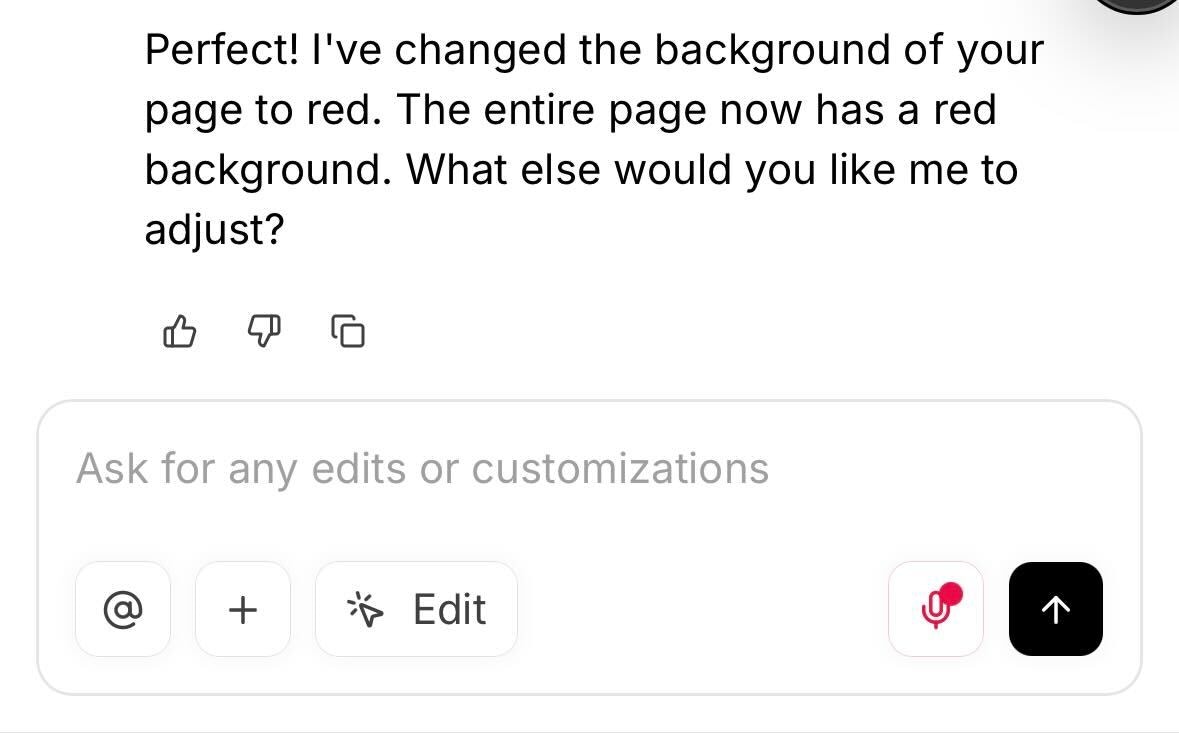
Using Keyboard Shortcuts
You can also activate Voice Mode with a keyboard shortcut:| Platform | Shortcut |
|---|---|
| Mac | Cmd + Option + M |
| Windows | Ctrl + Alt + M |
Tips for Best Results
- Speak clearly — Enunciate your words for more accurate transcription.
- Use natural language — Describe what you want just like you would type it. For example: “Add a hero section with a product image on the left and a buy box on the right.”
- Review before sending — Voice Mode fills in the input field, giving you a chance to review and edit the transcription before sending.
When to Use Voice Mode
Voice Mode is great for:- Longer prompts — Describing complex layouts or multi-step changes is faster by voice.
- Brainstorming — Talk through ideas without slowing down to type.
- Mobile editing — Easier than typing on smaller screens.